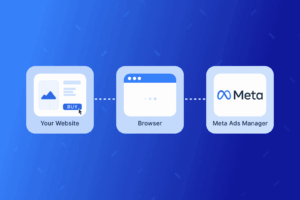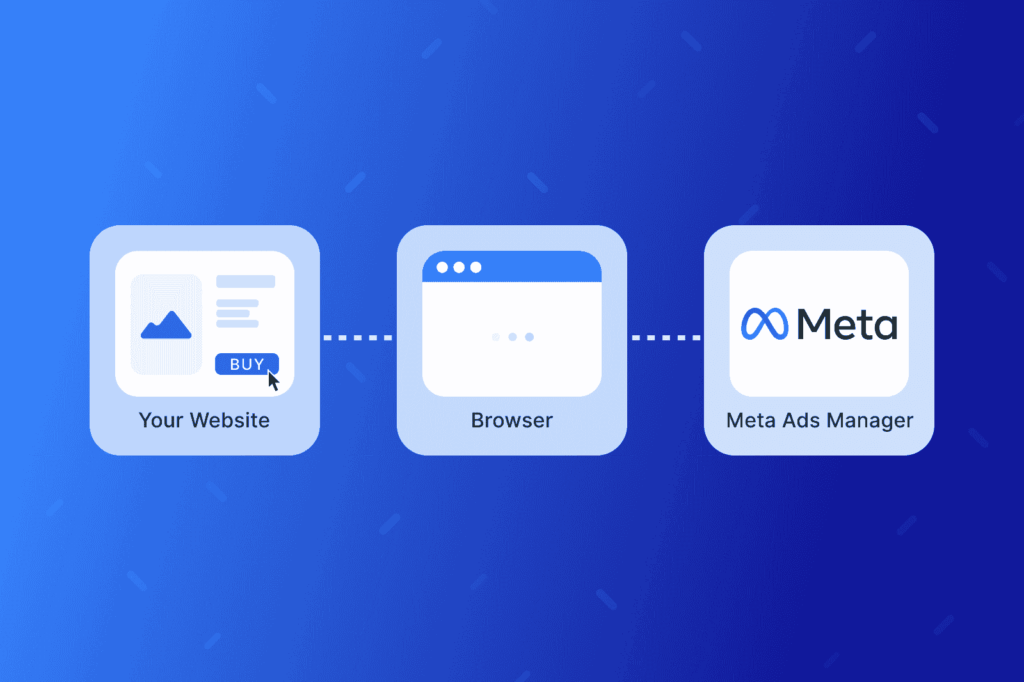

The Meta Pixel is a small piece of tracking code from Facebook/Instagram that you place on your website. Once it’s installed, it helps Meta understand what people do after they click your ads (or visit your site), like:
- Viewing a page
- Submitting a form / becoming a lead
- Clicking a call button (can be tracked as a custom event)
- Making a purchase
What Meta Pixel is used for
Once it’s running, it lets us:
- Track ad results correctly
Example: “This ad generated 12 leads” instead of just “This ad got clicks.” - Improve targeting (retargeting)
We can show ads to people who visited specific pages (like a service page) but didn’t contact you. - Improve performance over time
Meta’s algorithm learns which kinds of users are more likely to convert and optimizes delivery. - See reporting inside Ads Manager
We can view conversions, cost per lead, and which campaigns/ad sets are working.
How to find your Pixel in Meta
1) Open Meta Events Manager
- Go to Meta Business Suite → All tools → Events Manager
2) Select the correct Business + Data Source
- In Events Manager, look for Data Sources (left side)
- Click your Pixel
3) Get the Pixel ID and code
- Inside the Pixel, go to Settings
- You’ll see the Pixel ID there
- For the code snippet: go to Add Events or Set up (wording varies), then choose Install code manually to view/copy the base code
How to install the Pixel on a website
There are 3 common ways — I’ll list them in the order I usually recommend.
Option A (Best for WordPress): Install via a plugin
- In WordPress, go to Plugins → Add New
- Install “Meta Pixel for WordPress” (official Meta plugin)
- Connect it to the correct Meta account
- Select the correct Pixel
- Save
- Confirm it’s firing (steps below)
Option B: Install via Google Tag Manager
- Open Google Tag Manager
- Create a New Tag → choose Custom HTML
- Paste the Meta Pixel base code
- Trigger: All Pages
- Save → Submit/Publish
- Confirm it’s firing (steps below)
Option C: Install manually in the website header
- Copy the Meta Pixel base code from Events Manager
- Add it to the site’s global header (so it loads on every page)
- This is usually in the site theme header file or a global header area in the platform
- Save/publish
- Confirm it’s firing (steps below)
How to verify it’s installed correctly
1) Install Meta Pixel Helper (Chrome extension)
- Add the Meta Pixel Helper extension in Chrome
2) Visit the website
- Go to the site in Chrome
- Click the Pixel Helper icon
- You should see PageView firing (at minimum)
3) Check Events Manager
- In Events Manager, go to Test Events
- Enter the website URL and click Open Website
- Perform actions (visit page, submit form, etc.)
- You should see events appear in real time
How we track leads/forms properly (important)
The base Pixel tracks page views automatically, but lead tracking usually needs one of these:
Method 1: Thank-you page
- After a form submit, user lands on
/thank-you/ - We set a Lead event to fire on that page
- Now Meta can report “Leads” accurately
Method 2: Button click / form submit event
- Use Google Tag Manager or your form tool’s built-in tracking
- Fire a Lead event when the submit happens
- Confirm in Test Events
If you have more questions regarding Facebook’s Meta Pixel we can help get it installed!